
Picture a growing company in Business Bay. Twelve new laptops arrive on Sunday, eight more by Thursday, and somebody in HR wants everything ready before the new joiners walk in. One machine gets Access it will never use. Another misses the Arabic language pack. A third starts pulling updates in the middle of a client presentation. None of that is dramatic on its own, but multiply it across a few dozen desks and your IT person spends the week fixing small things instead of doing real work.
The Office Customization Tool, usually shortened to OCT, exists to stop exactly that. It lets you decide everything about a Microsoft 365 Apps installation once, save the decisions in a file, and reuse that file on every machine. This guide explains how the tool really works, what each setting does, where people trip up, and how UAE businesses can use it without turning deployment into a project.
What the Office Customization Tool actually is
OCT is a free, browser-based configuration tool from Microsoft. You open it at config.office.com, click through a set of panels, and export a small XML file called configuration.xml. That is all it does. It does not install anything, and it does not hand you a modified installer.
The file it produces is a set of instructions. Another Microsoft utility, the Office Deployment Tool (ODT), reads those instructions and does the actual downloading and installing. Think of OCT as the order form and ODT as the kitchen. Microsoft’s own overview of the Office Customization Tool describes the same split: you define which apps and languages go on the device, how updates arrive and which preferences apply, then hand the exported file to your deployment method.
Because the tool runs on Microsoft’s side, you never download or patch it. The product list you see is always the current one, which saves you from working off an outdated template.
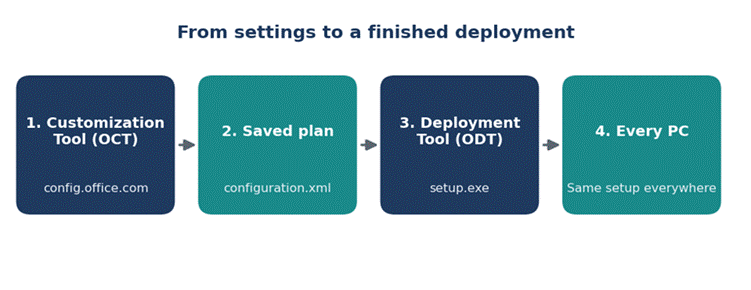
The four stages from choosing settings to a consistent install on every device.
Why UAE businesses get more out of it than most
The UAE workplace has a few quirks that make consistent Office installs matter more than they might elsewhere. Teams are often multilingual, so a single office may need English and Arabic side by side, sometimes with French or Hindi on top. Companies scale quickly, with hiring waves that arrive in batches rather than one person at a time. And plenty of small firms in free zones and SME clusters have one part-time IT contact covering several sites in Dubai, Sharjah and Abu Dhabi.
If you are setting up a fresh office, the software is only one part of the checklist. Hardware, desks and chairs take time and money too, and our guide to second hand furniture in Dubai is a handy read if you are trying to keep the fit-out budget under control. Once the desks are in, a saved configuration file means each new laptop can be set up the same way, in the same order, by whoever happens to be free.
How OCT works behind the scenes
The mechanics are simple once you see them laid out. You pick options in the web interface, and OCT writes them into XML. Each panel maps to a different part of that file. When you export, you get one file. Drop it in the same folder as the Office Deployment Tool’s setup.exe, and two commands do the rest.
First, pull down the installation files:
setup.exe /download configuration.xml
Then run the install using the same file:
setup.exe /configure configuration.xml
That is the whole process. If you chose a silent install, users see nothing at all. The tenth laptop looks like the hundredth: same apps, same update behaviour, same language setup. Microsoft also documents every available XML element in its Office Deployment Tool configuration reference, which is worth bookmarking if you ever want to understand what a particular line in your file does.
One useful extra: you can import an existing configuration file back into OCT and edit it in the browser. So you never have to start from a blank page when requirements change. Keep a tidy folder of saved files with clear names, one per department or office, and updating a setup becomes a five-minute job.
What you can configure, panel by panel
OCT groups its options into panels. Here is what each one controls and the practical thing to watch for.
| Panel | What it controls | Practical tip |
| Architecture and products | 32-bit or 64-bit, which Microsoft 365 Apps edition, and add-ons such as Visio or Project | Choose 64-bit unless a legacy add-in insists on 32-bit |
| App selection | Which Office apps are installed and which are excluded | Remove apps nobody uses to keep installs smaller and updates lighter |
| Update channel | How often devices receive feature updates | Match it to how much change your team can absorb |
| Languages | Primary, secondary and fallback languages | Add Arabic and English together, and consider the option that matches Windows language settings |
| Installation options | Silent install, restart behaviour, removal of older Office versions | Turn on removal of older versions to avoid clashes on reused laptops |
| Licensing and activation | Activation method for the licence type you own | Match the method to your actual licence, or you will see unlicensed warnings |
| Application preferences | Default app settings such as macro behaviour and add-ins | Set sensible security defaults before users touch anything |
Choosing an update channel without overthinking it
Of all the panels, the update channel causes the most confusion, and the most support calls when it is set wrong. It decides how quickly new features reach your users.
- Current Channel delivers new features as soon as Microsoft releases them. Good for a small, tech-comfortable team that likes having the newest tools.
- Monthly Enterprise Channel also updates monthly, but on a predictable schedule, which makes it easier to plan around.
- Semi-Annual Enterprise Channel moves only twice a year, so users see fewer surprises. Most managed offices with strict change control lean this way.
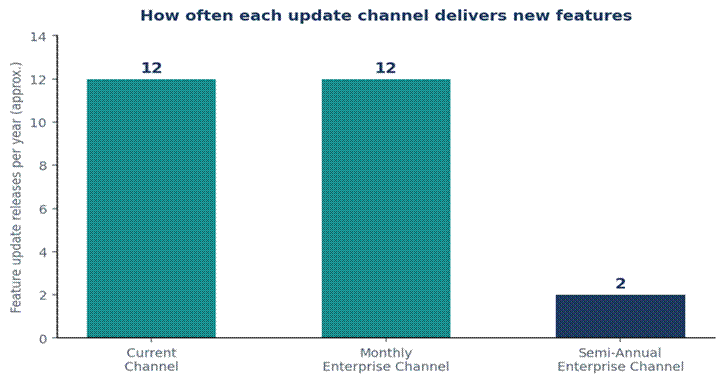
Approximate number of feature update releases per year by channel.
If people keep complaining that Office changed overnight, check this panel first. More often than not the channel is set to the fastest option when the office really wanted the calmest.
Step-by-step: building your first configuration
You can finish a first configuration in about fifteen minutes. Here is the order that works best.
- Open the tool. Go to config.office.com and sign in if prompted. Start a new configuration.
- Set architecture and product. Select the Microsoft 365 Apps edition that matches your subscription. Stay with 64-bit unless an older add-in forces your hand.
- Exclude what you do not need. Everything is included by default. Untick the apps your staff will never open.
- Choose the update channel. Decide how much change your team can handle, using the guidance above.
- Add languages. Include your primary language first, then secondary ones. For most UAE offices, that means English and Arabic together. Add a fallback so Office does not fail quietly when a language is missing.
- Set installation behaviour. Turn on silent install if you do not want prompts, and decide how to handle older Office versions already on the device.
- Confirm licensing. Pick the activation method that matches how you actually bought your licences.
- Export. Save the file as configuration.xml and store a copy somewhere safe with a clear name.
Before you roll anything out widely, test the file on one or two spare machines. Ten minutes of testing is far cheaper than fixing forty computers.
Common problems and how to fix them
Most OCT issues fall into a handful of patterns. Once you have seen them, they are quick to solve.
| Problem | Likely cause | Fix |
| XML error during deployment | A manual edit after export left a missing bracket or mismatched tag | Re-export from OCT, or open the file in a text editor and check its structure |
| Office shows an unlicensed message | Activation method does not match the licence type | Correct the licensing panel, export again and redeploy |
| Users see update prompts nobody approved | Update channel is set to the fastest option | Switch to a slower channel and push the new file |
| An older add-in stops working | The add-in only supports 32-bit Office | Regenerate the file with 32-bit selected |
| Missing language after install | Language was not added, or no fallback was set | Add the language in the file and redeploy |
A quick note on buying: many small UAE firms order laptops and accessories through online marketplaces. If a batch arrives faulty, knowing the return rules helps a lot, and our walk-through of shopping and returns on Amazon.ae covers the practical points.
OCT versus manual installation
For a single laptop, the standard installer is perfectly fine. Click through, pick your apps, finish. The trouble begins around the point where you are repeating those clicks on a dozen machines.
| Situation | Manual install | With OCT configuration |
| Consistency across devices | Depends on who clicked what | Identical every time |
| Language packs | Easy to forget one | Defined once in the file |
| Update behaviour | Varies by user choice | Set centrally by channel |
| Time for the tenth device | Nearly the same as the first | A fraction of the effort |
| Repeating the setup later | Rely on memory or notes | Reuse the saved file |
| Fit with Intune or Configuration Manager | Not applicable | Configuration file drops straight in |
If your company already uses Microsoft Intune or Configuration Manager, OCT fits naturally. Microsoft has even built a version of the tool into the Configuration Manager installer wizard. At that stage the configuration file stops being a one-off and becomes part of how you look after devices over the long term.
Practical rollout tips for UAE offices
- Start with a pilot group. Give the file to three or four people from different teams for a week before touching everyone else.
- Pick a quiet window. Avoid month-end and busy sales periods. During Ramadan, when working hours are shorter, schedule installs early in the day and tell staff in advance.
- Name files clearly. Something like finance-arabic-english-semiannual is far easier to trust than a file called new-final-2.
- Keep a copy of every version. If a rollout goes wrong, you can step back to a file you know works.
- Document your choices. A short note on why you picked a channel or excluded an app saves an awkward conversation six months later.
When the last machine is done, treat the team. If your office is in the capital, our list of the best Kerala restaurants in Abu Dhabi has plenty of places worth a lunch break. Or, come the weekend, the fishing spots around Abu Dhabi are a good way to switch off from screens entirely.
Final thoughts
The Office Customization Tool feels optional until the day you need it, and then it feels like something you should have started using ages ago. It will not make a single laptop faster, but it removes the guesswork from every deployment after the first one. Fewer support calls, fewer surprises after updates, and a setup you can repeat without second-guessing what ended up on each device.
If you want a broader picture of the product family you are deploying, the Microsoft 365 entry on Wikipedia gives a neutral overview. For the tool itself, start with a small test, save your first file, and build from there.
Frequently asked questions
What is the Office Customization Tool used for?
It is a Microsoft web tool that lets administrators build an XML configuration file before deploying Microsoft 365 Apps. You control the apps installed, the language packs, the update channel and the activation method. Microsoft explains the basics in its official OCT overview.
Do I still need the Office Deployment Tool if I use OCT?
Yes. OCT only creates the configuration file. The Office Deployment Tool reads that file and performs the download and installation. The two are designed to work together, and the configuration options reference shows how the file is interpreted.
Is the Office Customization Tool free to use?
Yes, the tool itself costs nothing. You still need valid licences for the Microsoft 365 Apps you deploy. If you are unsure about the product family, the Microsoft 365 overview on Wikipedia is a useful starting point.
Can I add Arabic and English in the same configuration?
Yes. The languages panel lets you choose a primary language and add others, so a single file can cover Arabic and English together. Set a fallback language as well so installs do not fail quietly.
What happens if I edit the XML by hand after exporting?
It works, but a small typing error can break the whole deployment. It is safer to change settings in OCT and export again. If you must edit manually, check the structure against the Microsoft reference before running setup.
Where can I find more practical guides for UAE readers?
Arab Market Trends publishes local guides on business, shopping and lifestyle. Good places to start are the Amazon.ae shopping guide and the piece on second hand furniture in Dubai.
Disclaimer
This article is for general information only and does not replace professional IT advice or official Microsoft documentation. Software settings, licensing terms and interface layouts can change without notice. Test configurations carefully on a small group of devices first and confirm requirements with your licence provider before rolling out widely.