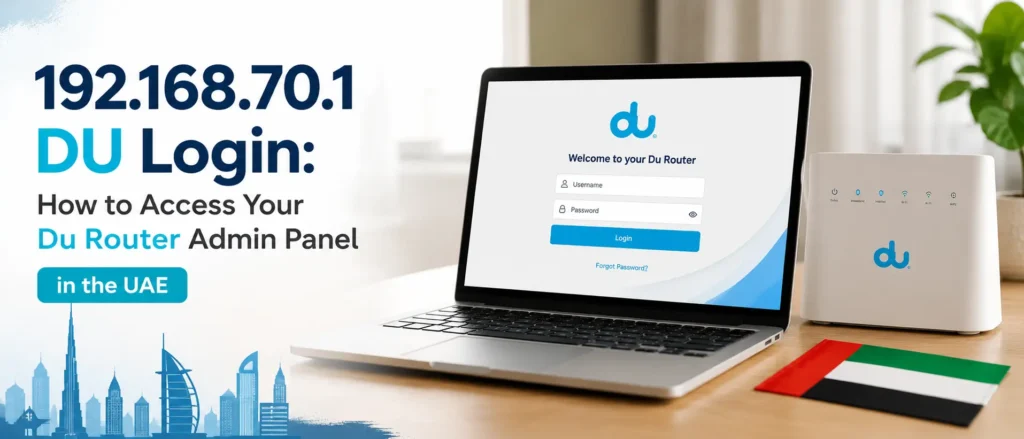
Quick Answer: Open your browser, type http://192.168.70.1, enter your username and password from the sticker on the back of your router, and you are in. This only works when connected to your Du network.
What Is 192.168.70.1 and Why Does Du Use It
If you have a Du home internet connection in the UAE, there is a good chance you have never needed to think about this IP address. Everything works, the WiFi runs, the devices connect, and life carries on. But the moment you want to change your WiFi password, rename your network, check which devices are connected, or fix a speed issue without calling Du customer support, this address becomes the most important thing on your screen.
192.168.70.1 is a private IP address. It is the default gateway address assigned to the admin panel of certain Du routers, particularly the ZLT family of 4G and 5G routers that Du distributes to home and office subscribers across the UAE. Think of it as the front door to your router’s control room. Once you are through that door, you have full access to every setting your internet connection relies on.
This address is not a website. You cannot access it from mobile data. You cannot reach it from another country or from outside your home network. It exists only within the private local area network that your router creates. The moment you are connected to your Du WiFi or plugged in via an Ethernet cable, this address becomes accessible and functional.
Important: When typing the address, always use numbers only. A very common mistake in the UAE is typing 192.168.l.70.1 with a lowercase letter L instead of the number 1. Browsers will not recognise a letter in an IP address. Always type http://192.168.70.1 and make sure every character is a digit.
Which Du Routers Use 192.168.70.1
Not every Du router uses this IP address, and this is a source of confusion for many subscribers. The address 192.168.70.1 is specifically associated with the ZLT range of routers and a number of Du-branded devices that run ZLT firmware. Du has distributed several different router models over the years depending on the package, location, and technology type, so your device may use a different gateway.
The table below covers the most common Du router models in UAE homes and offices, their default login credentials, and relevant notes to help you identify your device before you begin.
| Router Model | Default Username | Default Password | Notes |
| ZLT X21 | admin | admin | Check sticker — password may be unique |
| ZLT S10 | admin | admin | Older 4G model, common in Du bundles |
| ZLT S12 Pro | admin | admin | Dual-band, sticker password recommended |
| Du HomeConnect | user | user | Du-branded firmware, may differ |
| Nokia FastMile | admin | See sticker | Fibre gateway, rarely uses 192.168.70.1 |
| D-Link DWR-M960 | admin | See sticker | 4G LTE, Du business packages |
| NCM Solutions | admin | admin | Less common, used in some offices |
If your router model is not in this list or the IP address does not work, do not guess. Check your actual default gateway using the steps in the troubleshooting section of this guide. The gateway your device reports is always the correct address to use, regardless of what is printed anywhere.
Step-by-Step: How to Login at 192.168.70.1
The login process is straightforward once you know the exact steps. Many Du users in the UAE have unnecessarily called customer support or waited for a technician when the fix was a two-minute process on their own device. Follow each step below in order.
Before You Start
- Make sure your laptop, phone, or tablet is connected to your Du WiFi network
- Turn off mobile data on your phone before trying — mobile data will prevent the page from loading
- Have your router nearby so you can check the label on the back or bottom
- Use a browser you trust: Chrome, Edge, Firefox, or Safari all work
Login Steps
- Connect your device to the Du WiFi network. A wired Ethernet connection is more stable if you are planning to change settings.
- Open your web browser and click on the address bar at the very top of the screen.
- Type exactly: http://192.168.70.1 — do not add www, do not use https unless prompted, and do not use any letters in the IP address.
- Press Enter. The router login page should load within a few seconds.
- Enter your username. For most ZLT and Du routers this is admin. Some Du-branded devices use user.
- Enter your password. The default password is printed on the sticker on the back or bottom of your router. If it has never been changed, it is likely admin or a unique alphanumeric code on the sticker.
- Click Login. The router admin dashboard will load.
- Navigate to the section you need: WiFi Settings, Connected Devices, Security, or any other option shown.
- After making changes, always click Save or Apply. Do not close the browser before saving or your changes will be lost.
- Log out when you are done. This keeps your router panel secure from other devices on the same network.
Tip for UAE Apartment Buildings: If you are in a building with shared infrastructure and your router is placed in a utility cupboard or behind a panel, use a wired Ethernet connection to ensure you stay connected throughout the configuration process.
What You Can Do Inside the Du Router Admin Panel
Many Du subscribers in the UAE log in once to change their WiFi password and never explore the admin panel again. This is understandable, but there is a significant amount of control available to you that can improve your network performance, security, and experience without requiring any technical expertise.
| Admin Panel Section | What You Can Do |
| WiFi Settings | Change SSID (network name), WiFi password, frequency band (2.4 GHz / 5 GHz) |
| Connected Devices | See all devices using your network, block or allow specific devices by MAC address |
| Internet / WAN | View connection type, check IP assigned by Du, configure PPPoE if needed |
| Security Settings | Set admin password, enable firewall, configure port filtering |
| DHCP Settings | Set IP address range for devices, assign fixed IP to a specific device |
| Port Forwarding | Open specific ports for gaming, CCTV cameras, or remote desktop access |
| Device Management | Firmware update (if available), reboot router remotely, backup settings |
| Guest WiFi | Create a separate guest network with limited access for visitors |
| Parental Controls | Block websites or restrict internet access by time for specific devices |
Each of these sections is accessible from the main dashboard menu after you log in. The exact layout depends on your router model and the firmware version installed, but the core options listed above are present in all common Du and ZLT routers using this IP address.
How to Change Your Du WiFi Password via 192.168.70.1
Changing your WiFi password is the single most common reason Du subscribers access the router admin panel. Whether you have moved to a new apartment, noticed unusual network activity, or simply want a more memorable password, the process takes under two minutes.
- Log in to http://192.168.70.1 using the steps above.
- From the dashboard, go to WiFi Settings or Wireless Settings.
- Find the field labelled WiFi Password, WPA Key, or similar. The exact label varies by model.
- Delete the existing password and type your new one. Use a mix of letters, numbers, and symbols for better security. A minimum of eight characters is recommended.
- If your router supports both 2.4 GHz and 5 GHz bands, update the password for both. Using the same password for both bands makes reconnecting devices easier.
- Click Save or Apply.
- Your router will apply the new settings. All currently connected devices will be disconnected and will need to reconnect using the new password.
- Reconnect your devices using the new password. Update saved WiFi on phones, laptops, smart TVs, and any other devices.
Security reminder: If you are in a building with many neighbours or in a shared office space in Dubai or Abu Dhabi, change your default WiFi password as soon as possible. The default credentials printed on the router label are known and available online, making an unchanged password a security risk.
How to Change Your Du WiFi Name (SSID)
Your WiFi name, known as the SSID, is what appears when you scan for available networks on any device. Du routers ship with a default name that usually includes the word Du and a number. Changing it to something personal or professional makes your network easier to identify and adds a small layer of security by removing obvious branding.
- Log in to http://192.168.70.1.
- Go to WiFi Settings or Wireless Settings.
- Locate the field labelled SSID, Network Name, or WiFi Name.
- Clear the current name and type your preferred network name.
- If your router has both 2.4 GHz and 5 GHz bands, you can give them the same name or different names. Many users in UAE apartments add a suffix like _5G to distinguish them.
- Click Save. Your devices will need to reconnect to the renamed network.
How to Check and Block Connected Devices
One of the most useful features of the Du router admin panel is the ability to see every device currently connected to your network. In busy households across Dubai, Sharjah, and Abu Dhabi where multiple family members, guests, and smart home devices all share one connection, this feature helps you monitor usage and kick out any unauthorised connections.
- Log in to http://192.168.70.1.
- Navigate to Connected Devices, Device List, or DHCP Clients — the exact name varies by model.
- A list of all connected devices will appear, showing the device name, IP address, and MAC address.
- To block a device, find the MAC Filter or Access Control section in the menu.
- Add the MAC address of the device you want to block to the blocked list.
- Save the settings. The blocked device will lose access immediately.
MAC address filtering is not a complete security solution, but it is an effective deterrent for casual unauthorised access. For stronger security, always combine MAC filtering with a strong WiFi password.
How to Reset Your Du Router and Restore Factory Settings
If you have forgotten your admin password, locked yourself out, or simply want to start fresh after a configuration problem, a factory reset is the most reliable solution. This process erases all custom settings and returns the router to the state it was in when it left the factory.
Warning: A factory reset will erase all saved settings including your custom WiFi name, password, port forwarding rules, and any parental controls. All devices will need to reconnect using the default credentials from the router label.
- Make sure the router is powered on. Do not disconnect it during the reset process.
- Locate the small reset button on the back or side of the router. It is usually recessed in a small hole to prevent accidental presses.
- Use a pin, straightened paper clip, or SIM ejector tool to press and hold the reset button.
- Hold it for 10 to 15 seconds. The LED indicator lights will flash or change colour to signal the reset is happening.
- Release the button and allow the router to restart fully. This takes approximately 60 to 90 seconds.
- Once the router has restarted, your device will be disconnected. Reconnect using the default WiFi name and password printed on the router label.
- Open your browser and go to http://192.168.70.1. Log in using the default credentials from the sticker.
- Set a new WiFi name and password immediately to secure the network.
Troubleshooting: When 192.168.70.1 Does Not Work
This is the section that most Du subscribers in the UAE actually need. The login steps above work the vast majority of the time, but there are specific situations where the page refuses to load, shows an error, or behaves unexpectedly. The table below covers every common scenario and the correct fix.
| Problem | Most Likely Cause | Fix |
| Page won’t open | Not connected to Du WiFi | Connect to Du network first; disable mobile data |
| Page won’t open | Typed wrong IP (letter l vs 1) | Use http://192.168.70.1 — numbers only |
| Wrong credentials error | Password changed or unique sticker | Check sticker; reset if forgotten |
| HTTPS warning appears | Router uses self-signed cert | Click Advanced then Proceed — this is normal |
| Slow or blank page | Browser cache issue | Clear browser cache or try a different browser |
| Settings won’t save | Session expired or poor connection | Use wired Ethernet; re-login and try again |
| Router IP is different | ISP or firmware changed default | Run ipconfig (Windows) or check WiFi details |
| Locked out after reset | Router still restarting | Wait 90 seconds then reconnect and try again |
How to Find Your Actual Router Gateway If the IP Is Different
If 192.168.70.1 does not load at all, your Du router may be using a different default gateway. Here is how to check on each device type:
- Windows: Press Win + R, type cmd, press Enter, then type ipconfig and press Enter. Look for Default Gateway next to your active network adapter.
- Mac: Go to System Settings, then Network, select your active connection, click Details, and look for the Router field.
- iPhone or iPad: Go to Settings, tap WiFi, tap the small i icon next to your network name, and look for the Router field.
- Android: Go to WiFi settings, tap and hold your connected network, tap Manage Network Settings, then look for Gateway under Advanced settings.
The address shown as your gateway is the correct one to type in the browser. Common alternatives for Du routers include 192.168.8.1, 192.168.1.1, and occasionally 192.168.0.1. Use whichever address your device reports.
Security Best Practices for Your Du Router Admin Panel
Getting into the admin panel is one thing. Keeping it secure is another. Many households across the UAE, particularly in densely populated areas like Dubai Marina, Business Bay, and Sharjah’s residential corridors, have numerous WiFi networks in close proximity. A poorly secured router is a risk not just to your data but to your service contract.
- Change the default admin password immediately after your first login. The default credentials are publicly known.
- Use a strong WiFi password: at least twelve characters with a mix of uppercase, lowercase, numbers, and symbols.
- Enable WPA3 encryption if your router supports it. If not, use WPA2. Never use WEP which is outdated and easily broken.
- Disable WPS (WiFi Protected Setup) if you do not use it. WPS has known security vulnerabilities.
- Check connected devices regularly and block any you do not recognise.
- Log out of the admin panel after every session. Do not leave it open in a browser tab.
- Keep your router firmware updated if your model supports over-the-air updates from within the admin panel.
- Position your router centrally within your home to reduce signal leakage into corridors or neighbouring units.
Read Also: Dubai Zip Code
Final Word
For Du subscribers across the UAE, the address 192.168.70.1 is the gateway to complete control over your home or office network. It is not complicated, it does not require any technical background, and it takes less than a minute to access once you know the steps. Whether you are renaming your WiFi in a new Dubai apartment, blocking a neighbour who has been using your network, setting up parental controls for your children, or just securing your connection with a stronger password, everything you need is behind this single IP address.
The key points to remember: this address only works when you are connected to your Du network, always check the router sticker for your specific credentials, type the address with numbers only and no letters, and log out when you are done. If the address does not work, run ipconfig or check your phone gateway settings to confirm the correct IP for your specific device.
192.168.70.1 Login Summary: Browser > http://192.168.70.1 > Enter admin credentials from router sticker > Access dashboard > Change settings > Save > Log out
Frequently Asked Questions: 192.168.70.1 Du Login
| Question | Answer |
| What is 192.168.70.1? | It is the default gateway IP address used by many Du and ZLT routers in the UAE to access the admin panel. |
| Why is 192.168.70.1 not opening? | You are likely not connected to the Du WiFi. Connect to your network first, then try again using http://192.168.70.1. |
| What is the default Du router password? | Most ZLT and Du routers use admin/admin by default. Always check the sticker on the router as some units have unique passwords. |
| Can I use this on mobile data? | No. This is a private IP address. It only works when your device is connected to the same Du WiFi or Ethernet network. |
| Is it safe to access 192.168.70.1? | Yes. It is a private network address that only works within your home or office. It is not accessible from the internet. |
| How do I reset my Du router password? | Press and hold the reset button on the router for 10 to 15 seconds. This restores factory settings and the default credentials. |
| What if I see an HTTPS warning? | This is normal for home routers. Click Advanced and then Proceed to continue. The router uses a self-signed certificate. |
| Does every Du router use this IP? | No. Some Du routers use 192.168.1.1 or 192.168.8.1. Check your device gateway settings to confirm the correct IP. |
| How do I change my Du WiFi name? | Log in at 192.168.70.1, go to WiFi Settings, update the SSID field, and click Save. |
| Can I block devices from my Du router? | Yes. Log in and go to Connected Devices or MAC Filter. You can block specific devices by their MAC address. |